


Notion Marketing Agency Template: The Best 5 Tools You Need


Did you know the average marketing professional spends nearly one-third of their workday on administrative tasks like searching for information, managing spreadsheets, and switching between apps? According to a recent study by Asana, this “work about work” is one of the biggest silent killers of productivity. For marketing agencies, this chaos translates to missed deadlines, scattered client assets, and a constant feeling of being one step behind.
If you’re juggling client communication in Slack, project plans in Trello, content calendars in Google Sheets, and contracts in Dropbox, you’re not just disorganized—you’re leaking efficiency. This is where a unified Notion Marketing Agency Template transforms your workflow from scattered to streamlined, creating a single source of truth for your entire operation.
Template Overview: Your Agency’s New Command Center
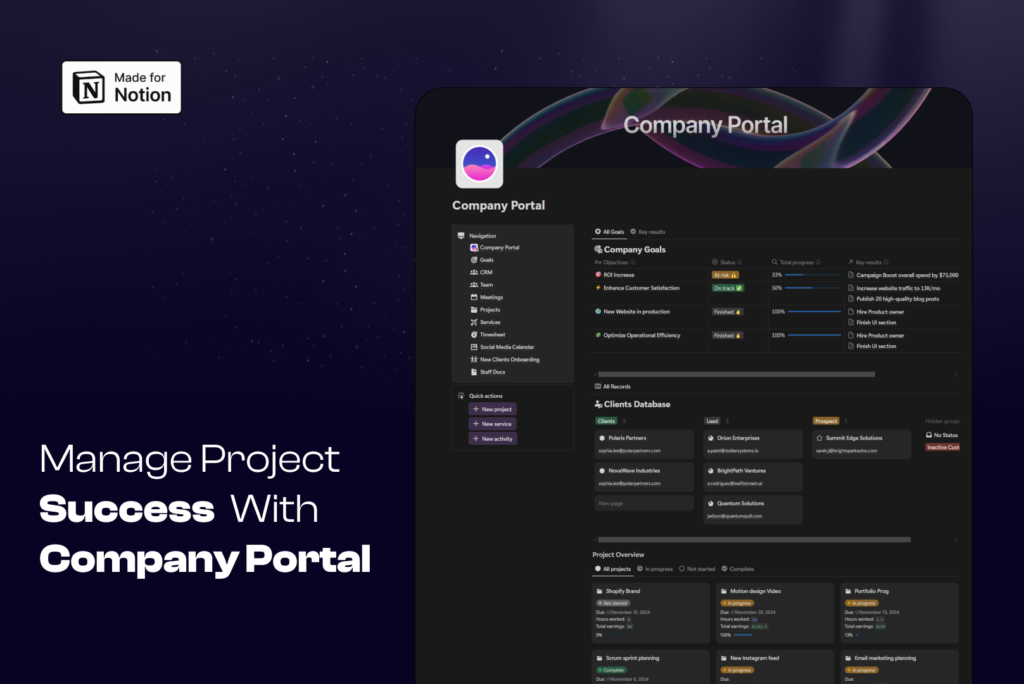
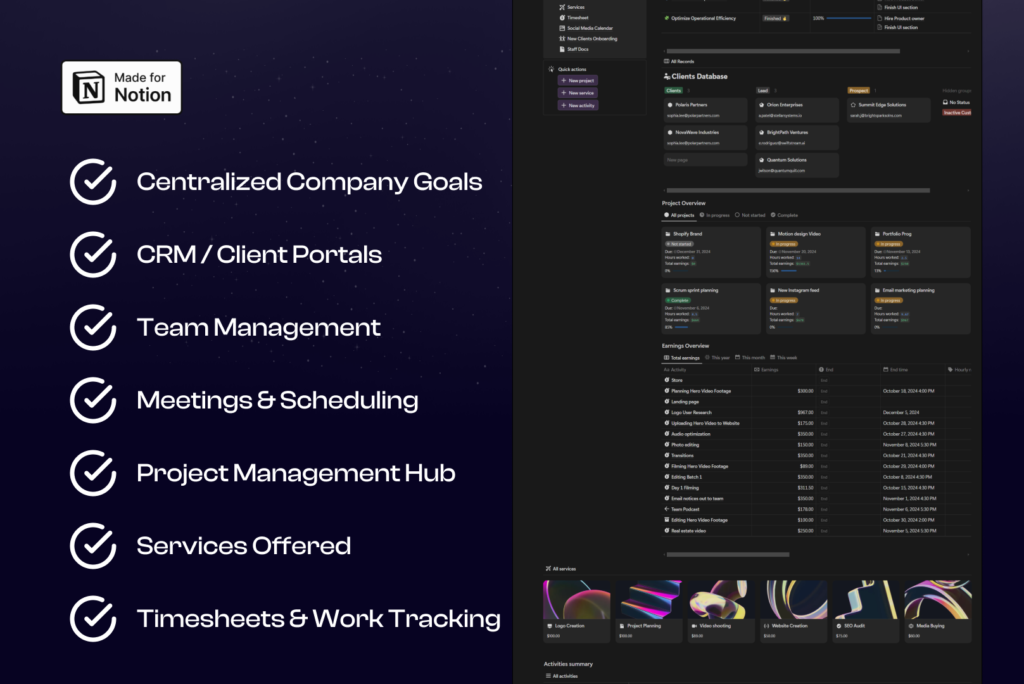
The Notion Marketing Agency Template isn’t just another digital planner; it’s a comprehensive productivity system designed specifically for the fast-paced world of marketing. It integrates five essential tools into one cohesive Notion dashboard, eliminating app-switching and centralizing your agency’s knowledge.
This template is for:
- Freelance marketers managing multiple clients.
- Boutique agency owners looking to scale their operations.
- In-house marketing teams striving for better collaboration and transparency.
Here are the five core tools built into this dynamic goal planner template:
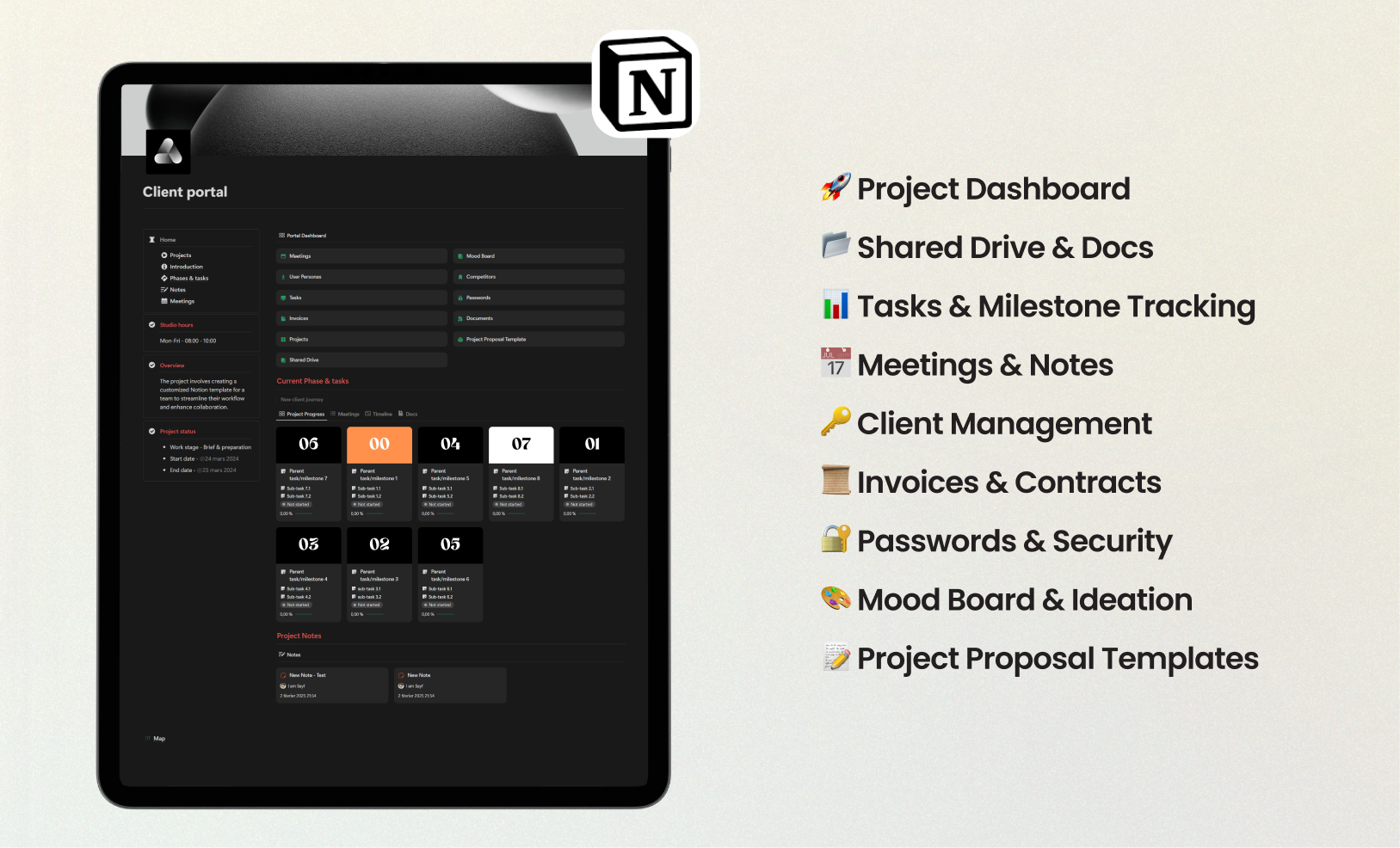
- Client & Project Hub: A master database to track every client, project, and deliverable.
- Centralized Content Calendar: Plan, create, and schedule content across all platforms.
- Smart CRM: Manage client relationships, communication logs, and key contacts.
- Campaign & Task Manager: Break down large campaigns into actionable tasks with deadlines and owners.
- Team & Resource Library: Store your SOPs, brand kits, and important team documents.
Time to Set Up: Get Started in Just 15 Minutes
Worried about a steep learning curve? Don’t be. You can set up and personalize this entire system in just 15 minutes—that’s 50% faster than configuring most project management tools from scratch.
Quick Onboarding Tip: Start small. Instead of migrating all your clients at once, begin by adding just one active project. This allows you to learn the workflow and see immediate benefits without feeling overwhelmed.
Step 1: Duplicate and Claim Your Template
After getting the template, click the “Duplicate” button in the top-right corner of your Notion window. This will copy the entire Notion Marketing Agency Template into your private workspace. The first thing you should do is rename it (e.g., “[Your Agency Name] HQ”) and change the cover image and icon to match your brand.
- Pro Tip: Create a “Master Templates” page in your Notion sidebar and keep the original, untouched template there. This way, you can always duplicate a fresh copy if you make mistakes or want to restart a section.
Step 2: Customize Your Client & Project Hub
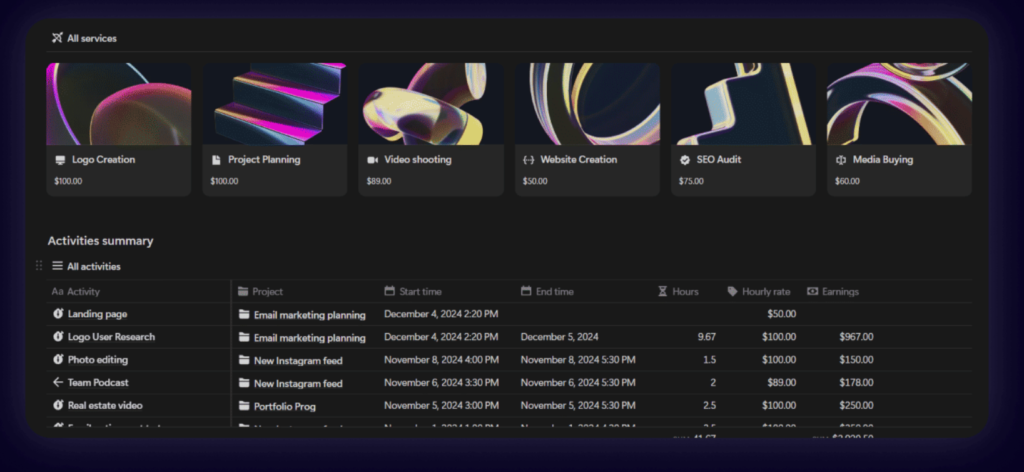
This is the heart of your dashboard setup. Navigate to the “Client & Project Hub” and start adding your clients. The database is pre-configured with properties like “Status” (Active, On Hold, Completed), “Primary Contact,” and “Budget.”
- Pro Tip: Use Notion’s
relationproperty to link this Client database to the Campaign & Task Manager. Now, when you look at a client’s page, you’ll see every single project and task associated with them automatically.
Step 3: Populate Your Content Calendar
Switch to the “Content Calendar” view. This tool uses a Notion database with different views: a calendar for scheduling, a Kanban board for tracking progress (Idea -> Drafting -> Approved -> Published), and a table for a high-level overview.
- Pro Tip: Integrate AI to supercharge your content creation. Use Notion AI to brainstorm blog titles, generate social media captions, or summarize research directly within your content cards. This simple hack can cut your content planning time in half.
Productivity Gains & Data Insights
Switching to a structured digital system like this Notion Marketing Agency Template isn’t just about feeling organized; it’s about measurable results. Research from the Project Management Institute shows that standardized practices improve project outcomes and reduce risks by over 30%.
This template helps you:
- Build Strong Habits: The integrated task manager and daily planner views encourage time-blocking and daily check-ins.
- Visualize Progress: Kanban boards and progress bars provide immediate visual feedback, boosting motivation and helping you spot bottlenecks before they become problems.
- Create a Single Source of Truth: By centralizing everything, you eliminate version control issues and ensure everyone on your team is working from the most up-to-date information.
Customizing for Your Unique Workflow
The true power of this Notion dashboard lies in its adaptability. Here’s how different roles can customize it:
- For the Freelance Social Media Manager: Simplify the dashboard to focus on the Content Calendar and Client Hub. Add a property to your content database for “Platform” (e.g., Instagram, TikTok, LinkedIn) and use filters to create platform-specific views.
- For the Full-Service Agency Owner: Expand the “Team & Resource Library” with databases for employee onboarding, financial tracking (linked to project budgets), and quarterly goal setting using the OKR framework.
- For the SEO Specialist: Add a “Keyword Research” database and link it to your Content Calendar. Track target keywords, search volume, and ranking positions for each piece of content you produce.
Productivity Hacks & Real-World Use Cases
- Client Onboarding in Minutes: Create a “New Client Template” within your Client database. When you add a new client, click the template to instantly generate a folder structure with a kickoff meeting agenda, a spot for their brand kit, and initial project tasks.
- The “Weekly Review” Power-Up: Use the pre-built “Weekly Review” page every Friday. It automatically pulls in all tasks completed that week and tasks due next week, giving you a perfect snapshot for client reports and planning.
- Automate Your Reporting: Connect your Notion workspace to Google Calendar using Notion’s native integration or a tool like Zapier. Automatically create calendar events for deadlines or sync meeting notes from your CRM.
Common Mistakes to Avoid When Using Your Template
- Over-Engineering Databases: Don’t add 50 properties to every database on day one. Start with the essentials and only add new ones (like “Priority” or “Effort Level”) when you feel a clear need for them.
- Skipping the Daily Check-in: The system only works if you use it. Spend the first 5 minutes of your day reviewing your “Today” view in the Task Manager to set your priorities.
- Ignoring Database Templates: Manually creating pages for every new blog post or client meeting is slow. Use the “template” feature inside each database to standardize your inputs and save time.
Maintaining & Updating Your System for Long-Term Success
A digital workspace is like a garden—it needs regular tending.
- Weekly: Perform a “Weekly Review” to clear your inbox, archive completed projects, and plan the week ahead.
- Monthly: Review your goals in the goal setting planner module. Are you on track? Do your priorities need to shift?
- Quarterly: Use this time to clean up your workspace. Archive old clients, update SOPs, and ask your team for feedback on what’s working and what isn’t.
Conclusion: Reclaim Your Time, Grow Your Agency
The right Notion Marketing Agency Template does more than just organize your files—it gives you back your most valuable resource: time. By centralizing your projects, clients, content, and tasks, you create a frictionless workflow that empowers you to focus on high-impact, creative work instead of digital admin.
This isn’t just about getting organized; it’s about building a scalable, efficient, and stress-free foundation for your marketing agency.
Ready to transform your productivity?
➡️ Download the Notion Marketing Agency Template Here!
Leave a comment below and tell us your biggest productivity challenge—we’d love to help! Or, explore our complete [template library for more productivity tools].
FAQs About the Notion Marketing Agency Template
Do I need a paid Notion account to use this template?
No! This template is designed to be fully functional on Notion’s free Personal Plan. You get unlimited pages and blocks, which is all you need to get started.
Can I share this productivity system with my team?
Absolutely. If you have a paid Notion plan (Plus, Business, or Enterprise), you can invite your entire team to the workspace and collaborate in real-time on tasks, content, and projects.
How do I reset the template for a new week/month?
The template is built on dynamic databases, so there’s no need for manual resets! Tasks and content from previous weeks are automatically archived or filtered out of your “Today” and “This Week” views, ensuring your dashboard always stays clean and focused.
What’s the best way to integrate this with Google Calendar?
Notion now has a native Google Calendar integration. You can connect your account in “Settings & Members” under “My Connections.” Once synced, you can view your Google Calendar events directly inside Notion, though two-way sync requires a third-party tool like Zapier or Make.com.
Is this template mobile-friendly?
Yes! All pages and databases are designed to be fully responsive and easy to use on the Notion mobile app, so you can manage your agency on the go.
Can I connect this template to other tools like Slack or Figma?
Yes. You can embed live Figma files directly into your project pages for easy design reviews. For Slack, you can use Notion’s integration to receive updates on page edits or mentions, or use a tool like Zapier to create more advanced automations (e.g., create a new Notion task from a Slack message).


