


Client Portal: 8 Productivity Hacks for Freelancers 2025


Are you a freelancer feeling bogged down by the endless cycle of client communication, project management, and administrative tasks? Did you know that the average freelancer spends up to 25% of their workweek on administrative chores instead of focusing on what they do best? It’s time to level up your workflow with a client portal that keeps everything in one place.
In today’s fast-paced digital world, a well-organized client portal can be a game-changer for freelancers. It helps streamline your workflow, centralize client communications, and keep projects on track. This blog post will introduce you to an advanced Notion template designed specifically for freelancers who need a robust client portal to stay organized and productive.
Template Overview
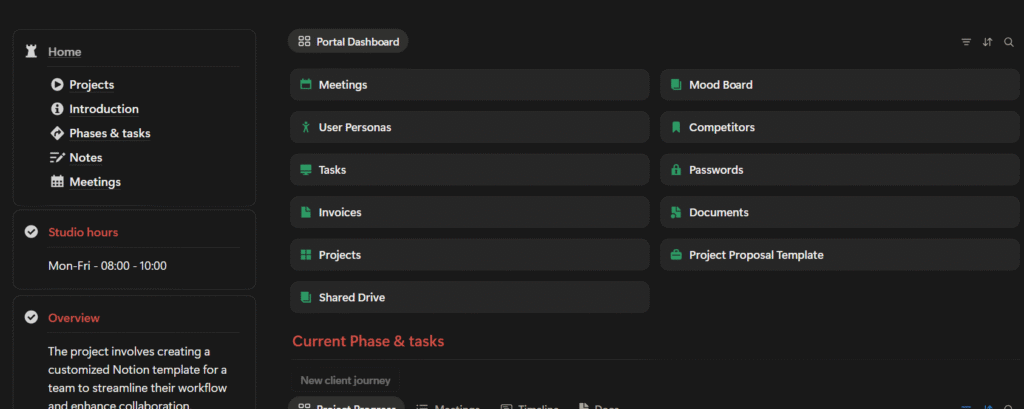
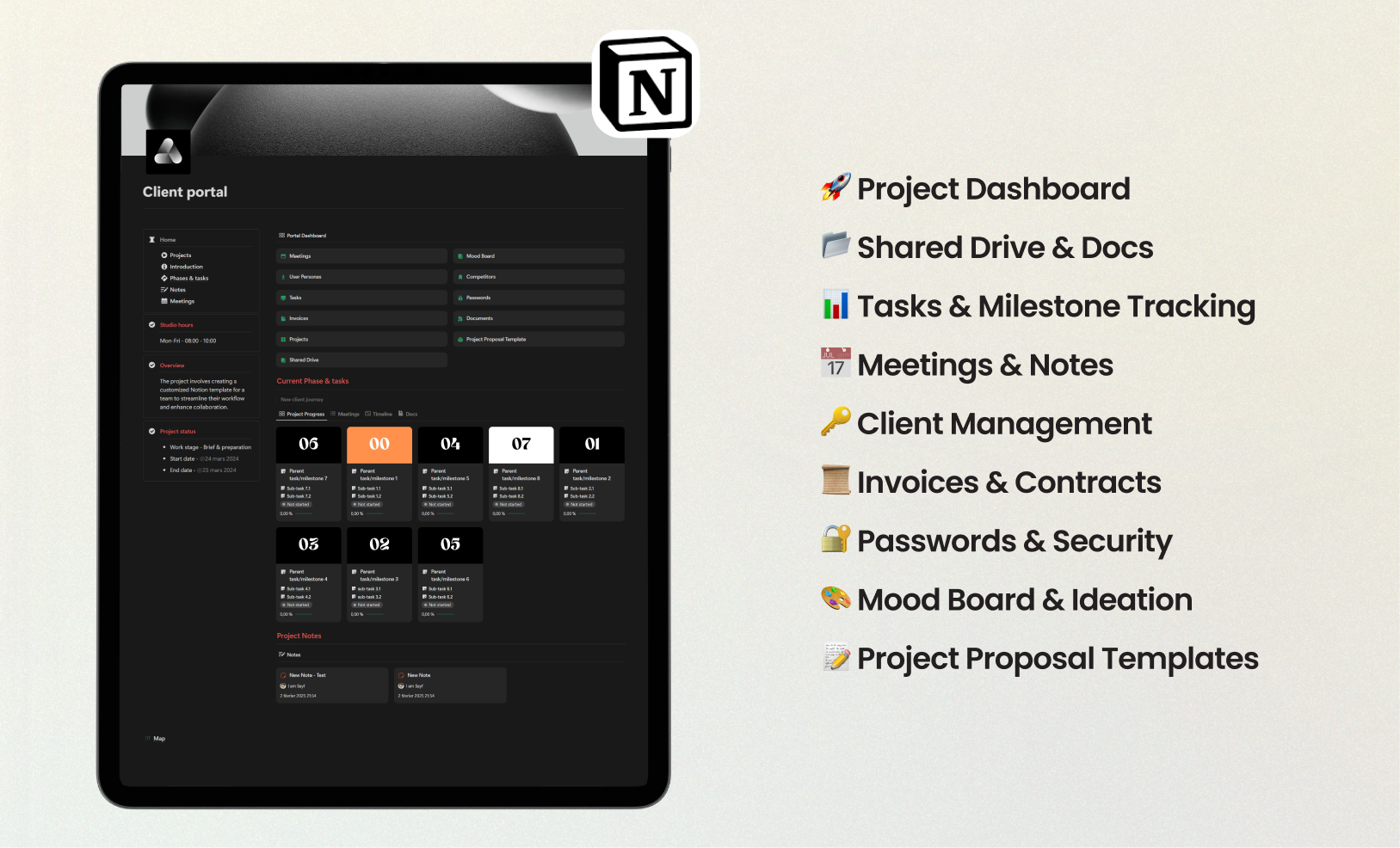
Our Notion Client Portal template is built with your freelancing needs in mind. Whether you’re a designer, writer, developer, or any other type of freelancer, this template provides a centralized space for managing all aspects of your client interactions and project workflows.
Sections Included:
- Client Database: Keep all your client information organized including contact details, project history, and communication logs.
- Project Management: Track the progress of your projects from start to finish. Use Kanban boards, Gantt charts, or simple task lists.
- Document Storage: Central repository for all project-related files and documents so that everything is just a click away.
- Billing and Invoices: Use built-in tables for tracking invoices, payments, and financial summaries directly within Notion.
- Time Tracking: Dial in your productivity by keeping track of the time spent on each client and project.
- Communication Logs: Log emails, calls, and meeting notes within a single database linked to each client.
- Task Management: Personal task manager to keep track of your daily to-dos and personal goals alongside client work.
- Goals and Metrics: Set and monitor your business goals and track performance metrics regularly within the portal.
Time to Set Up
Get started with your new client portal in just 15 minutes. Follow our guide to duplicate and personalize the template so you can focus on what matters most—your clients and your work.
Tips for Quick Onboarding:
- Duplicate the template into your Notion account.
- Fill in your existing client details manually initially; gradually add clients as new projects come in.
- Customize the fields according to what fits your service offering.
- Integrate with your calendar and email (if applicable) for seamless cross-platform productivity.
Step-by-Step Guide to Using the Template
To leverage the full potential of your client portal, follow these steps:
Step 1: Duplicate the Template
Click the “Duplicate” button on the template page to add it to your Notion workspace.
Step 2: Set Up Client Databases
- Go to the Client Database page and add your clients’ details such as name, email, phone number, and any other relevant contact information.
- For each client, create a new page under the Project Management tab where you can add project specifics like deadlines, deliverables, and milestones.
Step 3: Organize Your Projects
- Use Kanban boards for a visual representation of your projects’ progress (e.g., To Do, In Progress, Done).
- Alternatively, set up Gantt charts for a more detailed timeline tracking.
Step 4: Document Storage
Upload any existing project documents here so that all important files are kept in one centralized place for easy access and sharing with your clients.
Step 5: Billing and Invoices
Keep track of all financial transactions related to each project. Log invoices sent out and received payments here so there’s always a transparent record of your financials.
Step 6: Time Tracking
Start a new timer for each task you work on and categorize it under the corresponding client and project. This helps in generating reports on billable hours.
Step 7: Communication Logs
Every time you have a call, meeting, or email exchange with a client, add a new entry here so that you can keep client communications well-documented and accessible.
Step 8: Task Management
Maintain a daily to-do list that covers both client work and personal tasks so nothing slips through the cracks.
Step 9: Goals and Metrics
Regularly update your business goals and track performance metrics such as revenue, client satisfaction, and project delivery times within the portal.
Productivity Gains & Data Insights
Research shows that freelancers who use a client portal reduce administrative tasks by up to 40%, enabling them to focus more on client work and less on back-office tasks.
By centralizing client management and project tracking, our Notion template helps you stay organized and makes it easier to deliver projects on time and within budget. Over time, you’ll gain valuable insights through data visualization and metrics tracking which can help refine your business strategy.
Customizing for Your Workflow
While our Notion client portal template is designed to be an all-purpose solution, it’s also highly customizable:
- Adapt for Solopreneurs or Teams: If you work alone, focus on personalizing the task management and communication logs. For team use, share the workspace so that team members can collaborate directly on client projects.
- Integrate with Other Tools: You can integrate Google Calendar, email, and other external tools for a more seamless workflow.
- Design Tweaks: Tailor the colors, fonts, and layouts to make the portal uniquely yours.
Productivity Hacks & Use Cases
Hack #1: Automate Recurring Tasks
Set up recurring tasks for weekly check-ins or monthly billing cycles within Notion’s database features.
Hack #2: Time-blocking
Utilize the integrated calendar to block out dedicated times for client meetings and focused work periods such as “Deep Work” sessions.
Hack #3: Quick Status Updates
Set up a “Today” dashboard where you can quickly see what needs your attention first thing each morning.
Hack #4: Centralized Communication
Keep all client communications within Notion so that you only need one tab open instead of switching between email, chat, and project management tools.
Hack #5: Automate Invoicing
Set reminders for when invoices are due or when you need to follow up on unpaid invoices.
Hack #6: Streamline Client Onboarding
Create a template page specifically for new client onboarding. This page should include a welcome package, contract, and initial project plan.
Hack #7: Visualize Workload
Use Kanban boards to visualize project stages making it easy to identify bottlenecks and prioritize tasks.
Hack #8: Client Feedback Integration
After project completion, create a feedback form for clients so that you can capture their feedback and improve future projects.
Common Mistakes to Avoid

While a client portal can dramatically improve your freelancing workflow, here are some common mistakes to avoid:
Overcomplicating with Too Many Databases:
Keep it simple. Only add fields you need for your specific workflow initially. You can always add more later.Neglecting Regular Updates:
Ensure that all project details, client communications, and billing information are updated in real-time so that your portal stays useful.Ignoring Notifications:
If you use integrations or reminders within Notion, make sure notifications are active so you never miss an important task or deadline.
Maintaining & Updating Your System
To keep your client portal running smoothly, perform a weekly review:
- Update project statuses and check any outstanding tasks.
- Make sure all client communications are logged.
- Review your billing and invoices to ensure nothing is pending.
- Tweak any organizing structures that could be improved based on recent experiences.
By integrating automation tools like Zapier or Make.com, you can sync Notion with other productivity tools such as Google Calendar, Slack, and Trello.
Conclusion
A well-organized client portal can make a world of difference for freelancers who need to keep everything in one place. Our Notion client portal template is designed to help you manage clients, projects, invoicing, and communication all in a centralized workspace. Spread out your tasks across multiple tools no longer—this single solution aims to make your freelancing business more efficient and organized.
Download our template today and let us know how it fits into your workflow. Stay productive and keep your clients happy by creating a smooth and organized work process. Ready to transform your freelance business? Get started now!
FAQs
Q: Do I need a paid Notion account to use this template?
A: While some advanced features used in the template might require a paid Notion plan, you can generally use the template with a free Notion account.
Q: Can I share this template with my team?
A: Yes, if you have a Notion account that supports team sharing, you can share access to the client portal with your team members for collaborative work.
Q: How do I reset the template for a new project?
A: Each new project should be added as a new page within the Project Management section. The client database itself does not need to be reset.
Q: What’s the best way to integrate this with Google Calendar?
A: You can manually sync Notion databases with Google Calendar by using third-party tools like Zapier or directly embedding Google Calendar in a Notion page.


